
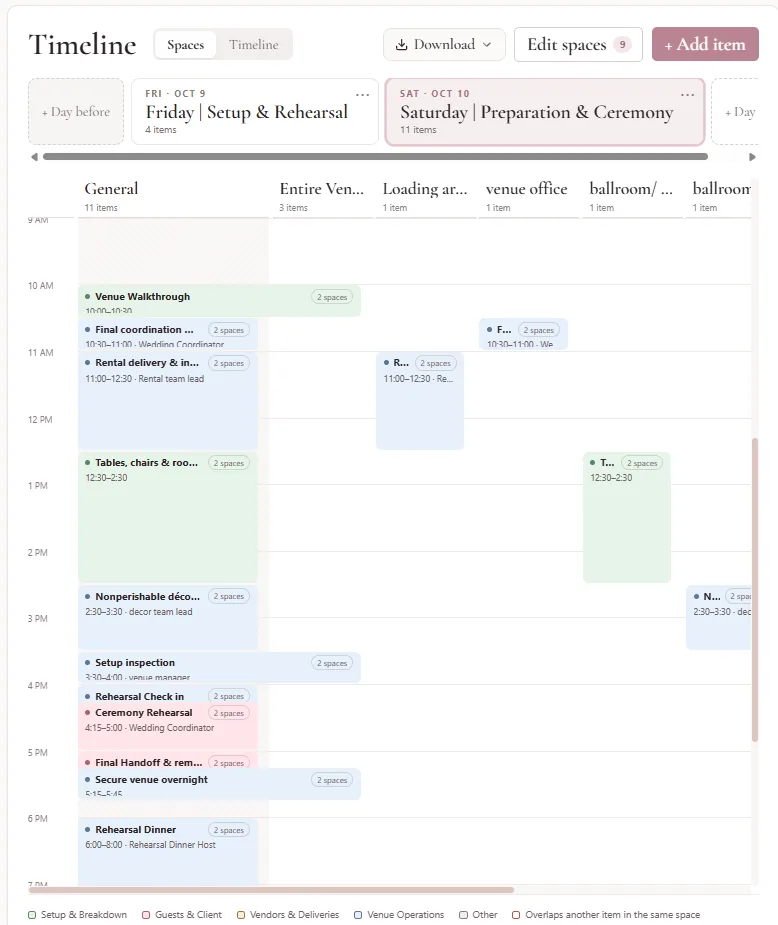
What it does
- Lays out each day of an event in columns, one for every space at your venue, plus a General column for things not tied to one room.
- Lists the same items as one run-of-show you can filter by day and by space.
- Flags two items booked into the same space at overlapping times with a red outline and a warning.
- Records who is involved in each item: vendors from your lists, your staff, or anyone else by name.
- Covers every day of the booking, starting from the event's own dates, with days before and after for setup, a rehearsal or a brunch.
- Downloads the whole timeline as a branded PDF or an Excel sheet to share with your team and vendors.
- Moves with the event: change the event date and every day of the timeline moves with it.
How it works
-
Set up your spaces once
Under Templates, Spaces, add the rooms and areas at your venue, like a ballroom, a ceremony lawn or a loading dock, and put them in the order you want their columns.
-
Open the event's timeline
Open an event that has a date and go to its Timeline tab. It already has one day for every date of the event, ready to fill in.
-
Pick the spaces this event uses
Use Edit spaces to choose which of your spaces appear as columns for this event. General is always there for things that happen everywhere.
-
Add what happens and when
Click and drag down in a space's column to schedule something for that time, or use Add item. Give it a name, a category, the people involved and any notes.
-
Download the run-of-show
Use Download to get the whole timeline as a PDF to print or share, or as an Excel sheet to sort and filter.
What's included
| Spaces view | Each day shows 24 hours in 15 minute rows, with a column for General and for each space the event uses. Drag in a column to create an item, drag an item to move it, and drag a column's edge to make it wider on desktop. |
|---|---|
| Run-of-show list | Every item in time order, grouped by day and hour, with its time, name, the people involved, its spaces and its notes. Filter it to one day, one space, or the whole event. |
| Times | Items start and end in 15 minute steps, and can run past midnight until 2 AM the next day. |
| Days | A timeline starts with one day for each date of the event, and you can add days before and after, up to 60 days. Each day can be renamed, for example Rehearsal or Farewell brunch, and deleting a day deletes the items on it. |
| Venue spaces | Up to 40 spaces per venue, each with a name, indoor or outdoor, an optional capacity and a description. Their order sets the order of the columns on every timeline. A space used by an event cannot be deleted. |
| Categories | Every item has one of five color-coded categories: Setup & Breakdown, Guests & Client, Vendors & Deliveries, Venue Operations, and Other. |
| Overlap warnings | Two items on the same day, at overlapping times, in the same space are outlined in red and named in the item editor. Sharing only the General column does not count as an overlap, and you can still save. |
| Who is involved | Add vendors from your lists, with the vendors already on the event listed first, staff from your team, or any other name. A vendor added to an item is also added to the event's Vendors tab. |
| Notes | Each item has notes of up to 1,000 characters, with line breaks kept, in a box you can drag taller. |
| PDF download | Landscape letter pages with your logo, venue name and colors. Each day has its own banner, items sit under hour headings in Time, Item and who, Spaces and Notes columns, overlaps are named in red, every note prints in full, and each page is numbered. |
| Excel download | One row per item with Day, Date, Start, End, Item, Category, Spaces, Who's involved, Notes and Overlaps, ready to sort and filter. |
| Follows the event date | Changing the event's date moves every day of its timeline by the same number of days, with each item staying on its day. A later end date adds days, and a shorter one never deletes planned days. |
| On a phone | Spaces scroll sideways under a fixed time column, with chips to jump between them. Tap an empty slot to add an item, and edit in a sheet that slides up. |
| Private to your team | The timeline is for venue staff. It is never shown in a client portal, on a website or on any public page. |
Availability
| Limit | Free$0 per month | Pro$49.99 per monthFree with 5+ active couples |
|---|---|---|
| Event timelines | Included | Included |
| PDF and Excel download | Included | Included |
| Venue spaces | 40 | 40 |
| Days per event timeline | 60 | 60 |
| Items per event timeline | 500 | 500 |
On Pro, your subscription drops to $0 per month for as long as you keep 5 or more active couples on the platform.
Works with
Common questions
What is an event timeline for a wedding venue?
An event timeline, often called a run-of-show, is the schedule a venue team works from on the day: when vendors arrive, when each room is set, when guests move between spaces, and when the night wraps up. In Seated With Love every event has one, laid out by day and by the spaces at the venue, and it can be downloaded as a PDF or an Excel sheet.
What should a venue run-of-show include?
A useful run-of-show lists every step of the day with a start and end time, where it happens, who is responsible, and any notes the team needs, from vendor load-in and room setup to the ceremony, dinner, toasts and breakdown. Seated With Love's event timeline holds each of those per item, along with a category and a warning when two things are booked into the same space at the same time.
How do I share an event timeline with vendors and staff?
In Seated With Love, open the event's Timeline tab and choose Download. The PDF is a branded run-of-show with every day, item, person and note, ready to print or email, and the Excel sheet has one row per item for anyone who wants to sort it. The timeline itself stays private to the venue team.
Can a timeline cover rehearsal and brunch days?
Yes. A Seated With Love timeline starts with one day for each date of the event, and the venue can add days before and after, such as a load-in, a rehearsal or a farewell brunch, and rename each day.
What happens to the timeline if the event date changes?
In Seated With Love, changing an event's date moves every day of its timeline by the same number of days, so a rehearsal the day before stays the day before and every item stays on its day. The edit form says this before the change is saved.
Can couples see the event timeline?
No. The event timeline in Seated With Love is for venue staff only. Couples, event hosts and guests never see it in their portal or on any public page, so the team can plan freely and share a download when it is ready.
Does Seated With Love's timeline work for corporate events and other non-wedding events?
Yes. Every event type in Seated With Love has the same timeline, from weddings to corporate events, galas, showers and celebrations of life.
What are venue spaces in Seated With Love?
Venue spaces are the rooms and areas at a venue, such as a ballroom, a patio or a bridal suite, set up once under Templates, Spaces. Each event picks the spaces it uses and they become the columns of its timeline. A venue can have up to 40 spaces on both plans.
Run every event day from one timeline
Start free, no credit card. Onboarding is included, so our team can set up your venue, your spaces and your first events with you.
Start freeLast updated 2026-10-07